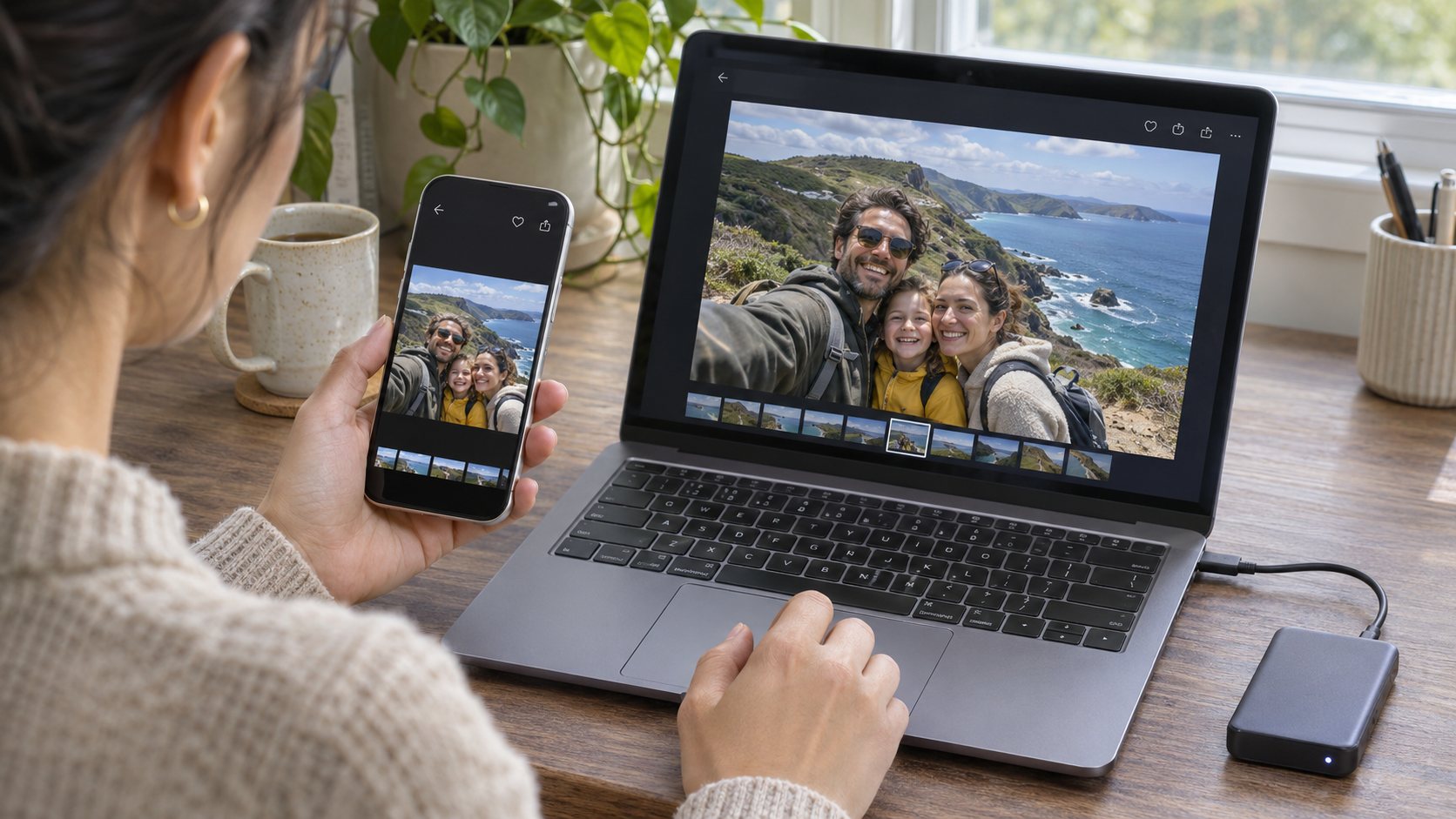
Before you clear photos from a full phone, download one photo and one video from the backup onto another device and open both files. Then check every item in the batch you plan to remove. A thumbnail can tell you a file exists somewhere in the library. A downloaded copy shows you can get it back.
Affiliate disclosure. News Polite may earn a commission if you buy through the pCloud link in this guide.
1. Pick a small batch and check the upload
Start with a few items you know well. Include a recent photo, an older photo and a longer video with sound. If you plan to clear screenshots, downloads or photos from a messaging app, include a file from each of those folders. Check that your backup app is set to include the folders you care about, especially on Android.
Confirm which account is receiving the backup. Give the app time to finish uploading, and check for errors or a full cloud storage quota. Make a list of the files in the batch using names or dates so you can check them off before you remove anything.
2. Download a photo and a video to another device
Sign in to the same account on a computer, tablet or another phone. Open the backup service there and find your test files by date or filename. Download them to a local folder outside the synced library. Open the downloaded files in the device’s photo viewer and video player.
- Photo: Zoom in and check the resolution if you need the original for editing or printing. If your service compresses uploads, check whether the downloaded version meets your needs.
- Video: Check the duration, play the beginning and end, and make sure you can hear the audio. Include a large or high-resolution clip if that is what you plan to clear.
- Special formats: If you care about Live Photo motion, burst frames, RAW files or edits, try restoring an example and confirm you got the version you want to keep.
Check that every file in your first batch is present in the backup. If you find a missing file, a video that will not play or a copy in the wrong quality, resolve that before deleting anything from the batch. For files you could never replace, keep an independent copy somewhere that will not mirror deletions, such as a disconnected external drive.
3. Use the right cleanup option for your service
iCloud Photos on iPhone. Turn on Optimize iPhone Storage in the iCloud Photos settings if your goal is to save room while keeping your library. iCloud stores the full-resolution originals and your iPhone can use smaller copies as space is needed. Deleting a photo from the synced library deletes it from your other devices using iCloud Photos as well.
Google Photos. Use the app’s Free up space on this device option to remove local copies that Google Photos has backed up. Read the confirmation screen before proceeding. This option can act on more files than your test batch. If you want to remove a single backed-up item, open it and use Delete from device where available. The regular trash button deletes from the Google Photos library. On an iPhone with iCloud Photos enabled, removing an item from the Apple Photos library can also remove its iCloud copy. Check the copy in Google Photos before proceeding.
pCloud Automatic Upload. This phone upload is one-way. After you verify that a file is in pCloud, deleting the local copy from your phone leaves the uploaded copy in pCloud. If the local gallery also syncs to iCloud or another service, deleting there can still remove the file from that synced library. Count on the pCloud copy only after you have tested it. If you need more space for an independent copy, see pCloud storage plans.
4. Recheck before clearing more
After the first cleanup, sign in on the second device again and confirm the files you removed are still there. Keep the trash or Recently Deleted folder intact while you verify the result. If a file disappeared from the cloud, stop and check the affected service’s recovery folder while it is still available.
Start with our phone storage guide if you need help deciding which files to move first.